

To manage your settings and update your information:
- Click the profile logo in the top navigation bar.
- Select "Settings" from the dropdown menu.
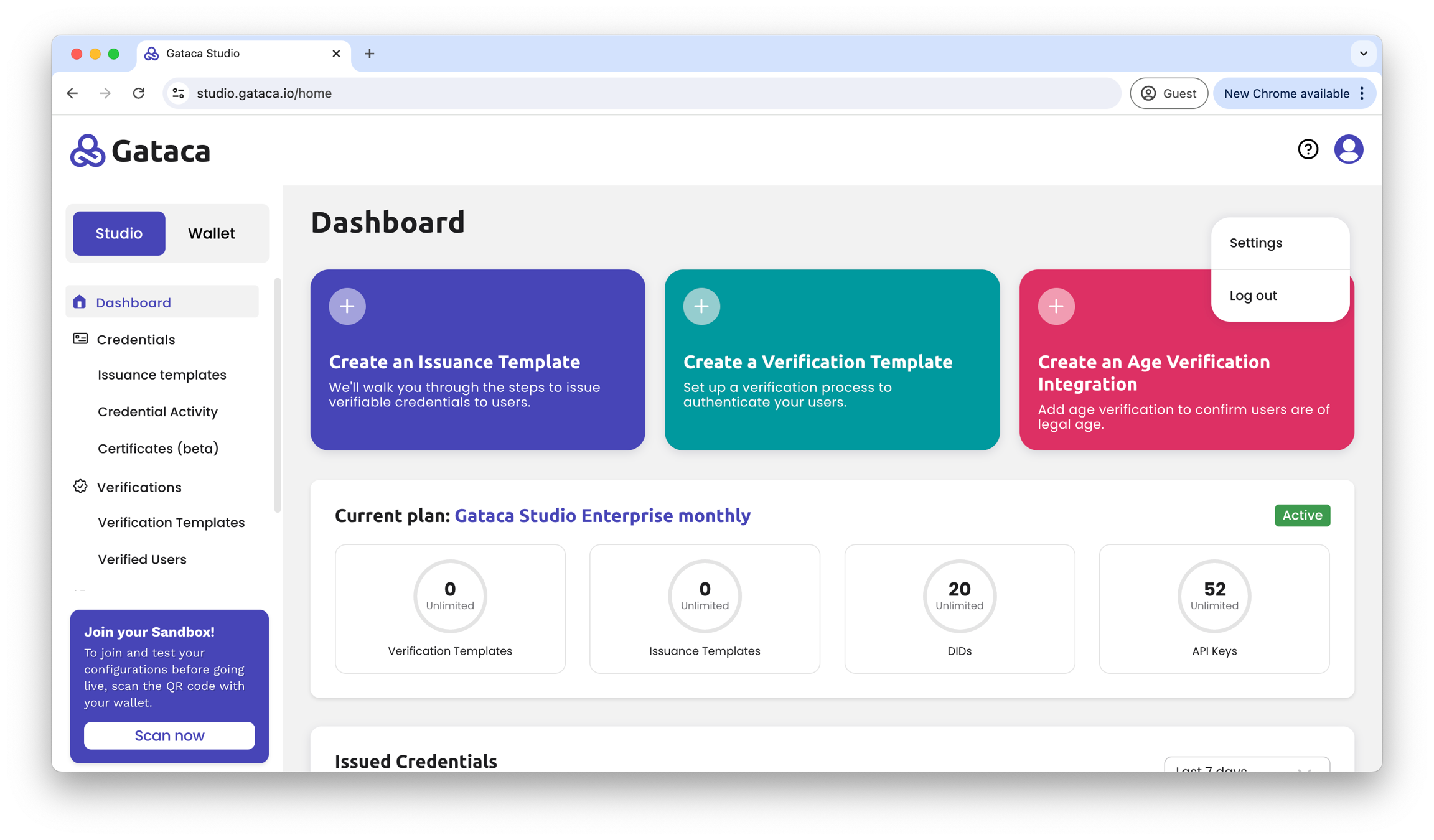
Settings Overview
- Profile Details: View and update your personal profile information.
- Organization Information: See and update details about your organization.
- Team Management: Edit your team and invite new users.
- Billing Data: Access and manage your billing information.
- Subscription Management: Change your subscription plan.
Update Company Information
Gataca Studio is a product designed for legal entities in accordance to our Terms of Service.
- Navigate to Organization in the left menu.
- Edit your company details and click Save. You can also upload and edit your company logo here.
Company Name is the name that users will see displayed as the issuer of credentials and in the Services tab of their ID Wallets.
Delete Organization
To delete your organization, click Delete Organization.
Careful! This action is irreversible!
Invite New Users
- Click Team from the left menu.
- Select Invite User.
- Enter the email and role of the new user.
Update Team Details
To modify an existing user’s access, click the three dots next to their name and assign pre-defined roles or create custom roles for team members.
Roles
Gataca Studio offers Role Based Access Control (RBAC) capabilities. Studio offers pre-defined roles.
- To create custom roles, click Team from the left menu, then go to the Roles tab.
- Click New Role, set a name, and select the permissions.
Go to Studio Roles to view all available roles.
Billing Information
- View your current plan at the top of the billing section.
- Click Change to update your card details or add a new card.
- Click Edit to update billing information.
- Download invoices or check their status in Billing History.
Manage Subscription
- See your current plan at the top of the subscription section.
- To modify your subscription limits, contact our team through the ticketing system.